Example menu: Grids
Use a grid when you need more control than the default automatically sized columns provide.
The following examples show how column counts and spans affect the layout.
Span multiple columns
Using a grid can be helpful when you wish to allow a list of menu items to span across multiple columns or have an empty column.
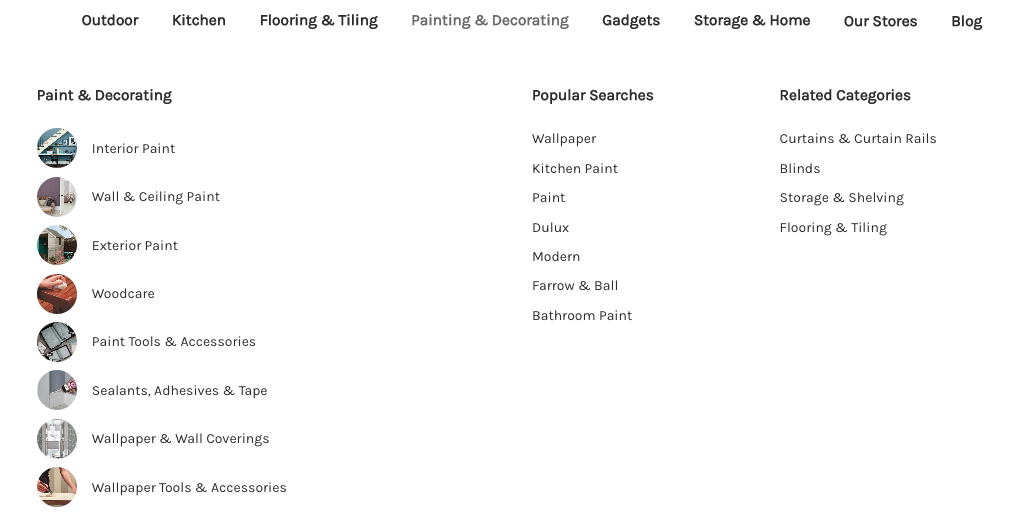
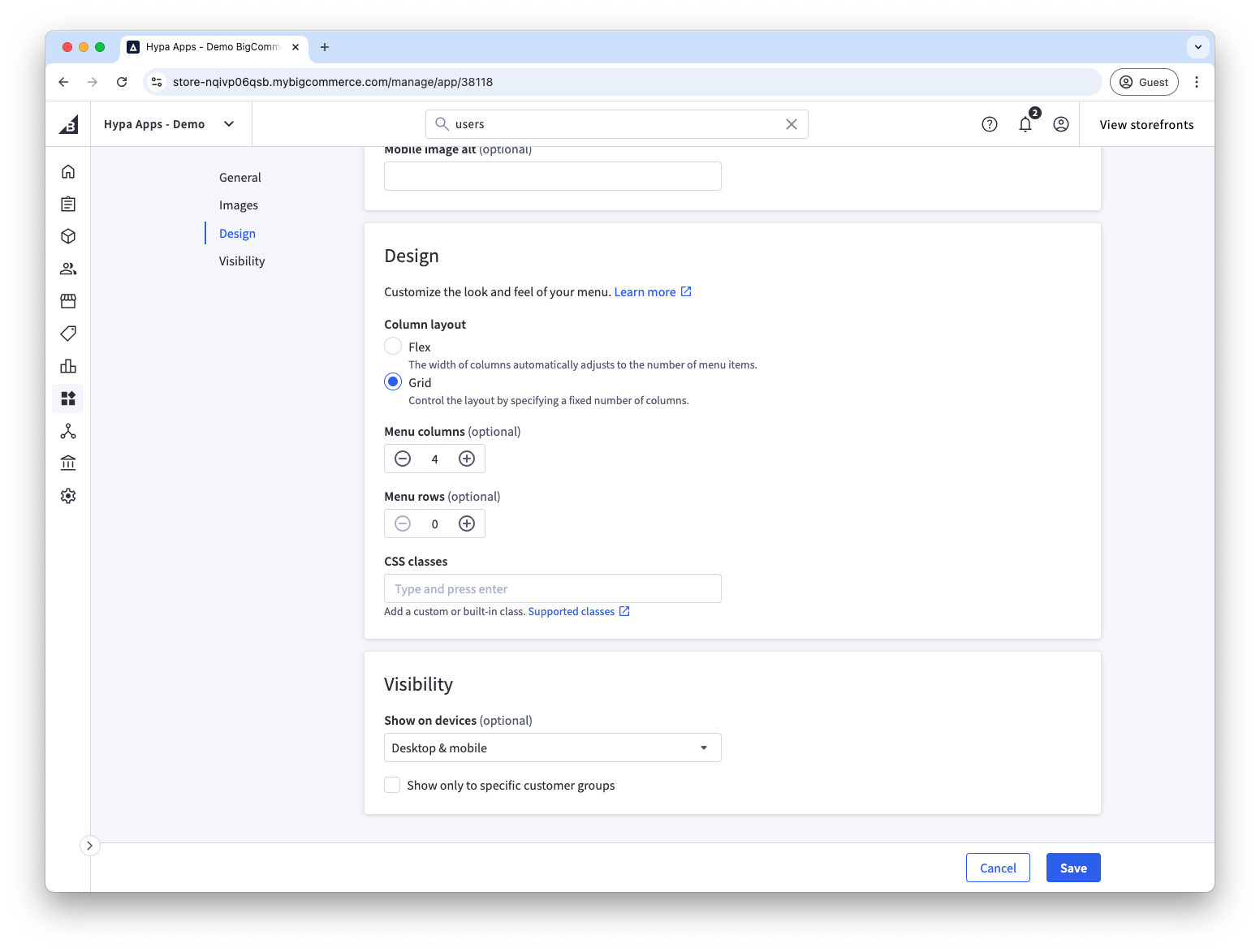
This design is a grid of 4 columns, which we configure on the top-level "Painting & Decorating" menu item, as below.
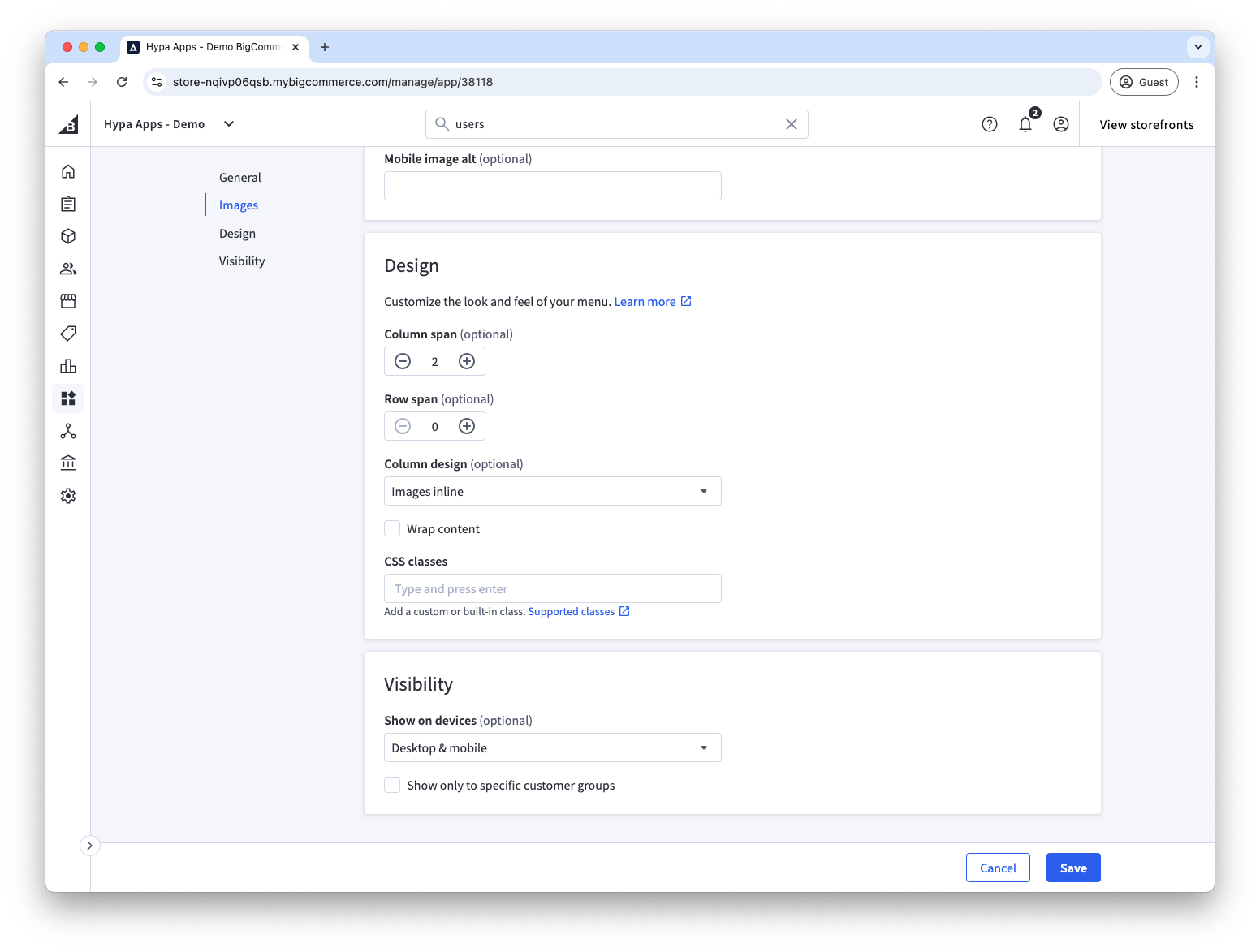
Then, on the second-level "Painting & Decorating" menu item, we can change the column span to 2. You'll notice in this situation we have also chosen the "Images inline" option and uploaded images to each of the third-level menu items so that they are shown as circles next to each link.
Multiple rows of menu lists
This grid approach can also be used to allow for two rows of menu lists.
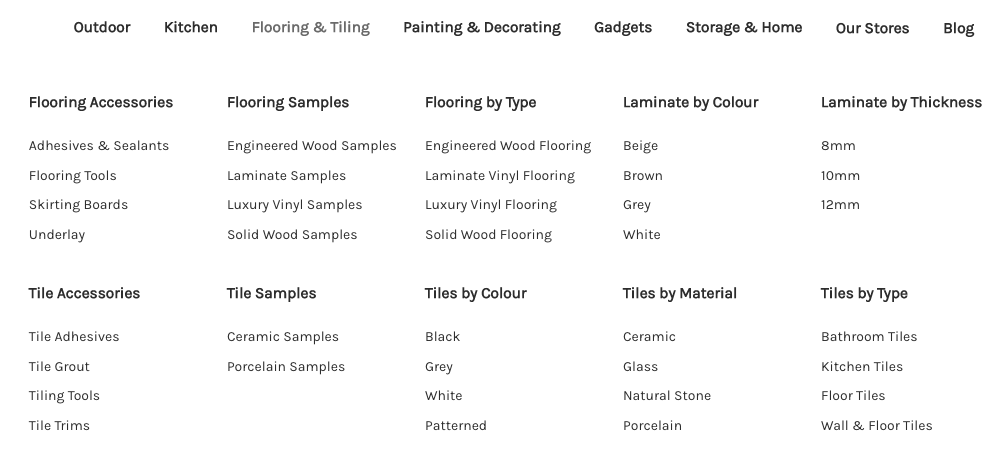
As well as allowing for large lists to wrap onto multiple rows.

See Example Menu: Multiple Rows, for more information on how to achieve this.