Uploading images to your menu item
Mega Menu Builder stores uploaded menu item images in BigCommerce through WebDAV. Before the first upload, configure the app for WebDAV.
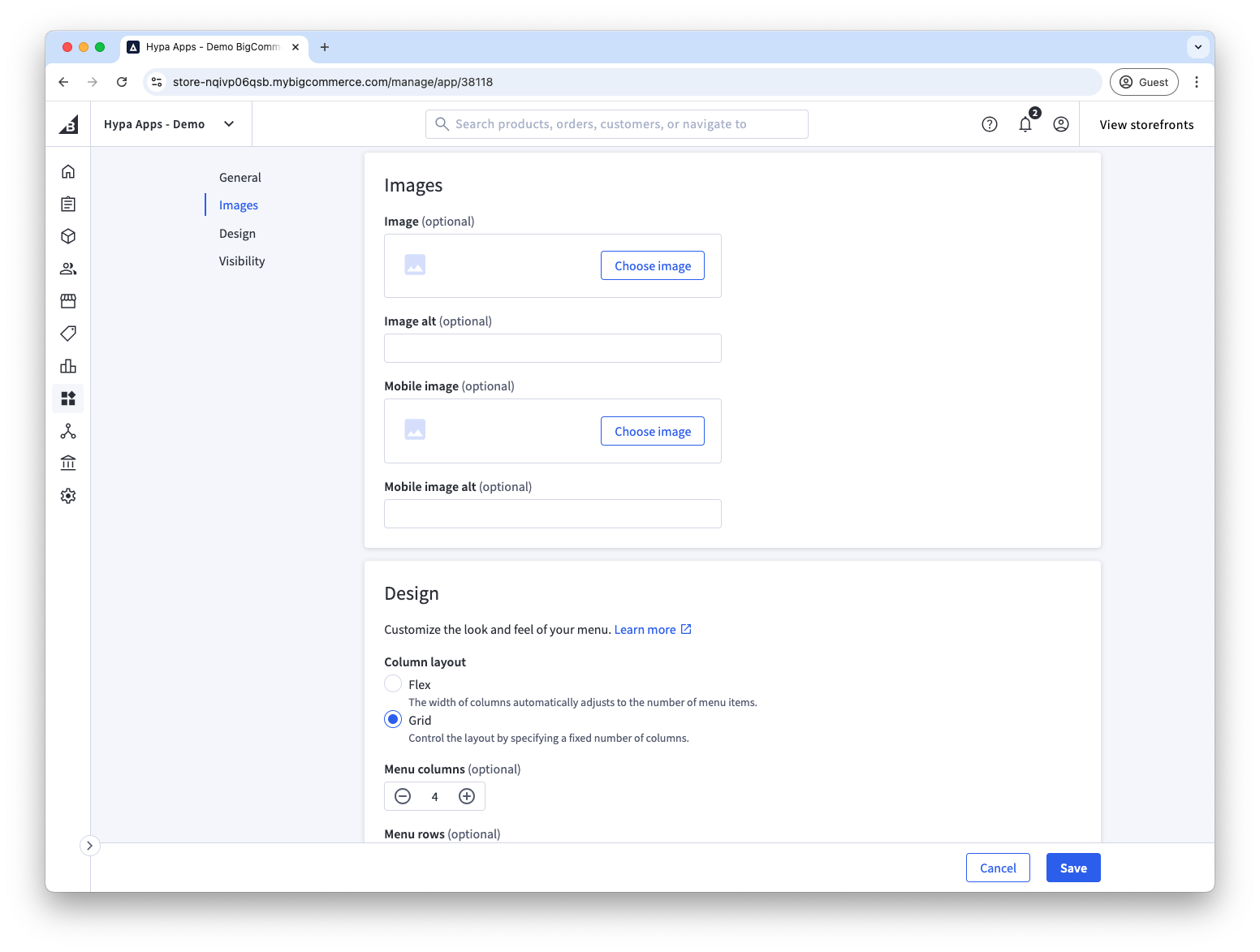
Image
This is the default image used for the menu item. It can be overridden on mobile devices by also providing a mobile image.
Mobile image
Optionally, choose a separate image for mobile. This lets you use a mobile-specific crop or a smaller file.
Performance considerations
The more images your menu contains, the more weight is added to your page. So you will want to be conscious about image sizes and how many you use.
For more info on optimising images, read this guide from Adobe.
Image dimensions
There is no single required size because the image expands to fill its menu column.
Review the rendered dimensions and keep the source image no larger than twice its displayed width and height.
Image format
Use a web-optimised format such as WebP, AVIF, JPEG or PNG.
Image compression
Finally, we recommend using tools that can help to compress images and reduce the file size.
Image optimisation tools
These tools can resize, convert and compress images:
Lazy loading images
Enable Lazy load images in the Page Builder widget options so the browser delays images until they are needed. This reduces the initial page weight.