Advanced JavaScript configuration
Use window.MEGAData when a custom theme needs JavaScript configuration beyond the Page Builder settings.
Add JavaScript configuration
Mega Menu Builder reads window.MEGAData when the menu loads.
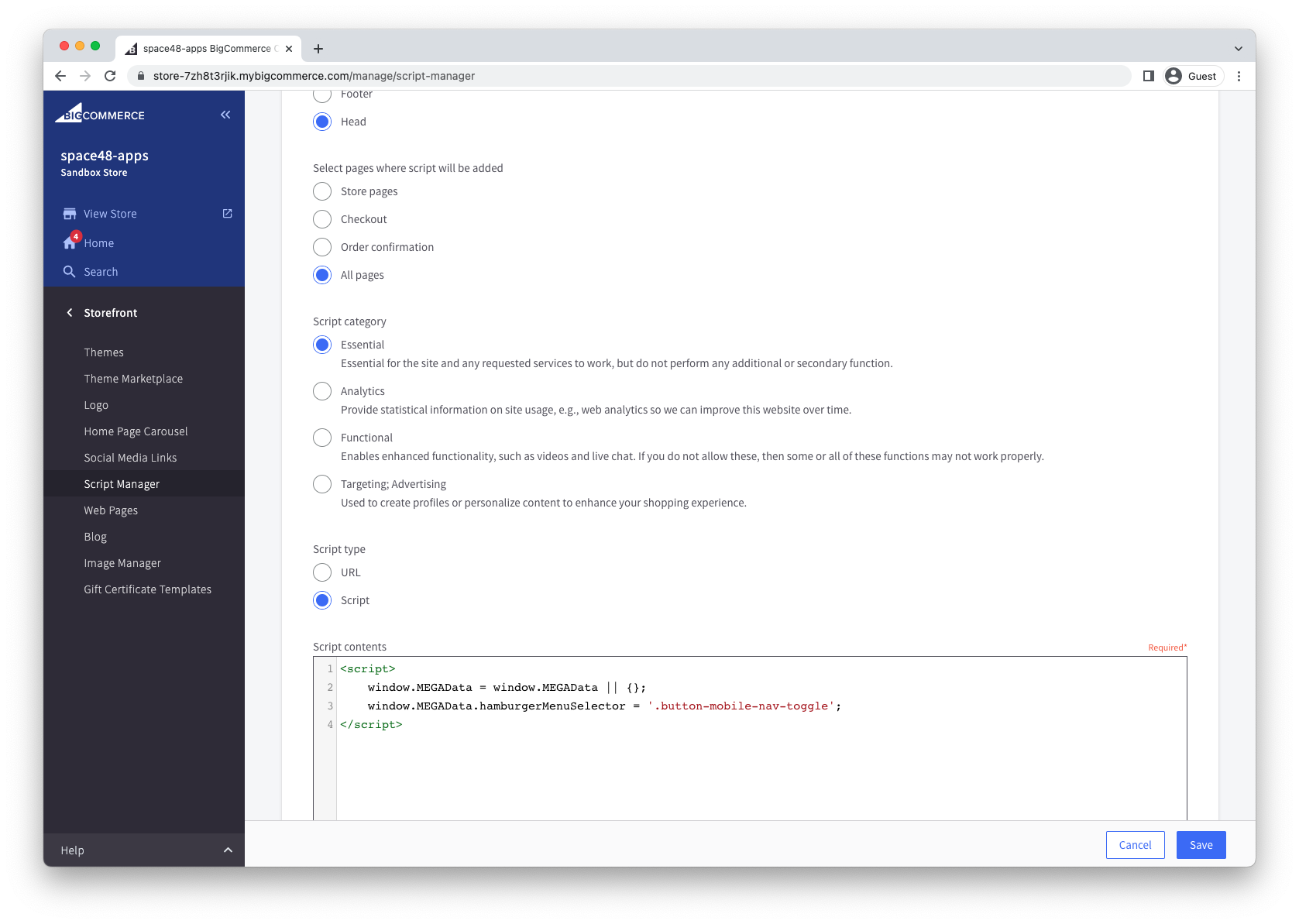
Create an Essential script in the Head of All pages with BigCommerce Script Manager.
This example changes the element that opens the mobile menu. See Using a custom hamburger menu for the complete workflow.
<script>
    window.MEGAData = window.MEGAData || {};
    window.MEGAData.hamburgerMenuSelector = '.button-mobile-nav-toggle';
</script>
Full list of configuration options
Define any of these properties on window.MEGAData before the menu loads.
| Field | Type | Purpose |
|---|---|---|
hamburgerMenuSelector | string | Selector for the element that opens the mobile menu. Defaults to .mobileMenu-toggle. |
mobile_menu_breakpoint | number | Widest viewport that uses the mobile menu. The Page Builder value takes priority. |
mobile_search_enabled | boolean | Whether to copy the search box into the mobile menu. The Page Builder value takes priority. |
mobile_account_links_enabled | boolean | Whether to copy account links, the currency switcher and gift certificate links into the mobile menu. The Page Builder value takes priority. |
userNavPagesSelector | string | Selector for the account links copied into the mobile menu. Defaults to .navPages-list--user. |
userNavQuickSearchSelector | string | Selector for the search box copied into the mobile menu. Defaults to .dropdown--quickSearch. |
Interact with the Mega Menu instance
After the menu loads, access its JavaScript instance through window.MEGA.
For example, open or close the mobile menu programmatically:
this.MEGA.featureMobileMenu.toggleVisibility();